Schieße tolle Fotos mit Filtern
+
+
=*
* mit etwas manuellem ZutunErhalte Fotos mit Stichwörtern
Dokumentation
PhotoTagger hilft dir als Fotograf, deine Fotos schnell und während du sie schießt mit Stichwörtern zu versehen, und diese Stichwörter in deine Foto-Bibliothek zu importieren.
Motivation
Moderne Kameras speichern mittlerweile fast alle Informationen zu einem Foto, vom verwendeten Objektiv bis zu den Kameraeinstellungen. Was sie allerdings nicht können ist festzuhalten, welche Filter verwendet werden.
Ich möchte die Fotos in meiner Bibliothek auch mit Stichwörtern über die verwendeten Filter versehen. Im Nachhinein war dies jedoch immer schwierig zu bewerkstelligen. So ist PhotoTagger entstanden.
Mit Hilfe der iOS App kannst du als Fotograf schnell und direkt, nachdem du Filter angebracht hast, diese auswählen und sie zu dem oder den geschossenen Fotos speichern. Zusätzlich gibt es die Option, einen Titel, eine Überschrift oder eine Beschreibung zu setzen. Das ist praktisch, wenn jemand während der Aufnahmen sagt, welche Art Vogel es ist, den du fotografierst. Man benötigt keine andere Notizen App mehr, um sich das zu merken, und es ist auch direkt zu dem Foto gespeichert, das du gerade aufnimmst.
Nach dem Import der Fotos in die Foto-Bibliothek kann aus der App eine Datei exportiert werden, welche die Namen der Fotos mit den gespeicherten Zusatzinformationen enthält. Nutzt du dafür Adobe® Lightroom® Classic, kannst du diese Datei mit Hilfe des kostenfrei bereitgestellten Lightroom Zusatzmoduls direkt in deine Lightroom-Bibliothek importieren, womit den Fotos in Lightroom die entsprechenden Stichwörter zugeteilt werden. Nutzt du eine andere App, könnte es auch möglich sein, die Datei zu importieren, da sie eine leicht zu lesende und analysierende Textdatei ist.
Die iOS App ist darauf ausgelegt, schnell und ohne Störungen auch bei Nacht bedient zu werden. Dazu stellt sie nur ein dunkles Schema bereit und weicht vom Design von Standard-Apps ab, in dem sie größere und auch mit Handschuhen leicht zu treffende Buttons verwendet.
Installation
- Als erstes installiere die iOS App aus dem App Store auf dein iOS Gerät, welches du unterwegs dabei hast. Laden im App Store
- Anschließend installiere das Lightroom Zusatzmodul für Lightroom Classic.
Einrichtung
- Nachdem du die iOS App das erste Mal geöffnet hast, musst du deine Kameras und Filter unter Fotorucksack eintragen.
- Wenn dies geschehen ist, kann es mit dem Markieren von Fotos losgehen.
Verwendung
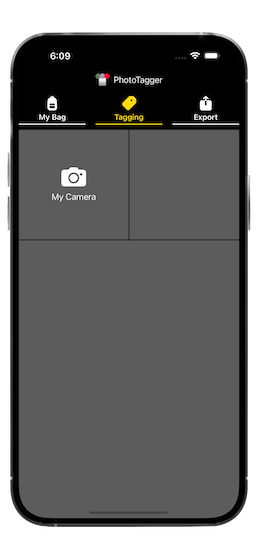
- Wenn du unterwegs bis, öffne die PhotoTagger App und wähle Markieren.
- Wähle die Kamera, mit der du Fotos schießen willst.
-
Jetzt hast du zwei Möglichkeiten:
- Automatisch hinzufügen
- In diesem Modus kannst du schnell und einfach die Filter auswählen, die du gerade verwendest.
Wenn dein iOS Gerät erkennt, dass mit der Fotokamera Fotos aufgenommen wurden und diese auf das iOS Gerät übertragen werden, werden zu den Namen der so geschossenen Bilder die ausgewählten Filter als Markierungen gespeichert.
Dies funktioniert wunderbar mit Nikon Kameras und der entsprechenden SnapBridge App, kann aber auch mit den entsprechenden Apps anderer Marken funktionieren.
Sobald ein Foto auf dem iOS Gerät erkannt wird, welches dem Namensschema der Kamera entspricht, wird ein neuer Datensatz in der App mit den gerade ausgewählten Filtern gespeichert. Wenn dies geschehen ist, wird der so erkannte Dateiname oben angezeigt. Dies hilft zu prüfen, ob alles übertragen wurde.Bitte beachte, dass der Vorgang der Synchronisierung der Bilder von der Kamera zum iOS Gerät etwas Zeit in Anspruch nimmt und von der verwendeten Verbindung abhängt.
Die persönliche Erfahrung zeigt, dass die Zeit ausreicht, wenn man Filter wechselt, so dass man die neu angebrachten Filter anschließend in der App auswählen kann. Allerdings kann die Übertragung länger dauern, wenn man eine Serie von Bildern mit den gleichen Filtern schießt. Hier kann es sein, dass noch nicht alle Bilder von der Kamera zum iOS Gerät übertragen wurden, wenn man mit dem Wechsel der Filter fertig ist. In diesem Fall sollte man dies anhand der angezeigten Bildnummer kontrollieren, andernfalls werden die zuletzt geschossenen und noch nicht übertragenen Bilder mit dem neuen Filterset markiert.
Zum Schluss kann der Dialog einfach durch Wischen geschlossen werden. - Manuell hinzufügen
- In diesem Modus kannst du die Fotos manuell anhand der Bildnummer markieren.
Einige Funktionen assistieren dir dabei:- Kontinuierlich hinzufügen
- Ist diese Option eingeschaltet, öffnet sich das Eingabe-Sheet gleich nach dem Speichern wieder. Dies spart erneutes Klicken auf Hinzufügen, wenn man mehrere Fotos markieren möchte.
- Einstellungen zu übersprungenen Fotos hinzufügen
- Diese Option erscheint nur, wenn zwischen der ausgewählten Bildnummer und der zuletzt gespeicherten eine Lücke ist.
Ist diese Option eingeschaltet, werden Datensätze für alle Fotos vom zuletzt gespeicherten bis zur ausgewählten Bildnummer mit den ausgewählten Filtern geschrieben. Dies hilft, wenn man viele Fotos mit den selben Filtern geschossen hat, so dass man nicht jedes einzelne extra speichern muss.
-
Wenn du wieder am Computer bist, wo du deine Bilder ordnest, wähle die Export Funktion. Hier kannst du auch ein Filter-Präfix eingeben, welches die Hierarchie innerhalb Lightrooms Schlüsselwörter wiederspiegelt. Wenn dies erledigt ist, wähle Export, um die CSV Datei auf deinem Computer zu speichern. Wenn du einen Mac besitzt, ist es am einfachsten, wenn du sie per AirDrop® überträgst.
Hierfür hast du zwei Möglichketen:
- Alles exportieren
- Dies exportiert alle in der Datenbank gespeicherten Filter-Stichwörtern aller Fotos.
- Neueste exportieren
- Dies exportiert nur die neuen Datensätze, die nach dem letzten Export gespeichert wurden.
Beachte, dass dies nicht hundertprozentig stimmt und etwas trickreich ist, da es keine Möglichkeit gibt festzustellen, ob die Datei tasächlich vom mobilen Gerät übertragen wurde. Daher ist das “letzte Export-Datum” der Zeitstempel, als das letzte Mal der Export-Button innerhalb dieser Ansicht ausgewählt wurde.
-
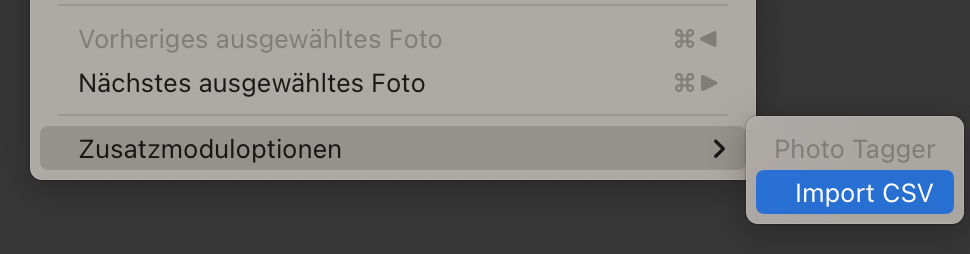
Nachdem du deine Fotos in die Lightroom Bibliothek importiert hast, nutze das PhotoTagger Zusatzmodul, um die gespeicherte CSV-Datei ebenfalls nach Lightroom zu importieren. Damit werden für jedes gespeicherte Foto die Stichwörter vergeben, wie sie in der CSV-Datei enthalten sind, sowie ggf. Titel, Überschrift und Beschreibung gesetzt.
Achtung: Titel, Überschrift und Beschreibung werden dabei ersetzt! Die Stichwörter werden hinzugefügt.
Anmerkungen und Haftungsausschluss
- iOS App
-
- Damit das automatische Hinzufügen von Stichwörtern funktioniert, müssen die Bilddateien von der Kamera zum mobilen Gerät übertragen werden. Dafür wird eine spezielle App der Hersteller benötigt. Diese Funktion wurde mit einer modernen Nikon Kamera und der zugehörigen SnapBridge App erfolgreich getestet. Um die Bilder der Kamera von denen des Smartphones zu unterscheiden, beachtet die App nur Bilder mit einem speziellen Namensschema. Einige Namensschemata sind in der App zu einigen Marken vorhanden, können aber in den Einstellungen zur Kamera abgeändert werden. Es ist bekannt, dass einige Kameras kein einheitliches und erkennbares Namensschema verwenden und die Funktion somit schwierig zu bewerkstelligen ist. Informationen zu Namensschemata bestimmter Hersteller sind daher herzlich willkommen.
- Die iOS app führt keine Änderungen an den Bilddateien auf dem Smartphone durch. Sie speichert lediglich Datensätze in der eigenen Datenbank bestehend aus Bildname und den vergebenen Stichwörtern.
- Im automatischen Modus prüft die iOS App regelmäßig, ob neue Bilder in der Foto-Mediathek hinzugefügt wurden. Das kann Auswirkungen auf die Akku-Laufzeit des Smartphones haben.
- Adobe® Lightroom® Zusatzmodul
-
- Das Adobe® Lightroom® Zusatzmodul funktioniert nur mit Lightroom Classic.
- Auch wenn hier nur ein Lightroom Zusatzmodul bereitgestellt wird, ist die Funktionalität nicht auf Lightroom beschränkt. Die exportierte CSV-Datei ist ein einfach zu lesendes Format und kann ggf. auch in andere Programme importiert werden, um Stichwörter zu schreiben. Ich selber nutze allerdings aktuell nur Lightroom und kann daher keine anderen Add-Ons oder Plug-Ins für andere Programme schreiben oder testen.
-
Das Adobe® Lightroom® Zusatzmodul führt Änderungen an der Lightroom Bibliothek durch.
Stelle sicher, dass du eine Sicherheitskopie von deiner Bibliothek erstellt hast, bevor du das Zusatzmodul nutzt, um Datenverlust zu vermeiden!
Die folgenden Änderungen werden durchgeführt:
- Wurden in der App Titel, Überschrift oder Beschreibung gesetzt, so werden diese Informationen in die Bild-Metadaten in Lightroom übernommen und etwaige vorhandene Daten überschrieben.
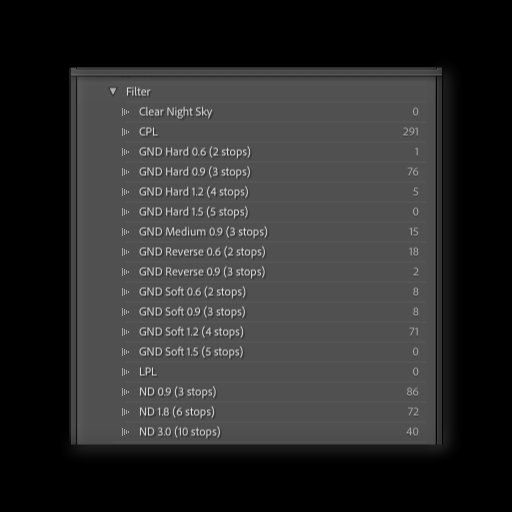
- Wurden Stichwörter durch das Auswählen von Filtern gesetzt, werden diese zu den Bildern in den Bild-Metadaten hinzugefügt.
- Wurden Stichwörter durch das Auswählen von Filtern gesetzt, die in der Lightroom-Bibliothek noch nicht vorhanden sind, werden diese in Lightroom angelegt.
- Android™ App
-
- Aktuell gibt es keine Android™ App und es ist kurzfristig auch nicht geplant, eine zu entwickeln.
- Affiliation
- Diese Seite hat keine Partnerschaft (Affiliation) mit Apple Inc., Adobe, Nikon Corporation oder Google LLC.
- Warenzeichen & Copyrights
-
- Apple®, App Store®, AirDrop®, die Apple logo®s, iPhone®, iPad®, Mac®, und macOS® sind eingetragene Warenzeichen von Apple Inc. in den Vereinigten Staaten und/oder anderen Staaten.
- Android™ ist eine Marke der Google LLC.
- Adobe®, Lightroom®, Creative Cloud® und die Adobe logos sind entweder eingetragene Warenzeichen oder Warenzeichen von Adobe in den Vereinigten Staaten und/oder anderen Staaten.
- Nikon und SnapBridge sind Warenzeichen der Nikon Corporation.
Weitere Informationen zum Haftungsausschluss dieser Webseite finden sich hier.
Datenschutzbestimmungen
Die iOS App sammelt keinerlei persönliche Informationen, noch werden etwaige Informationen an Drittanbieter gesendet.
Um den automatischen Modus nutzen zu können benötigt die App Zugriff auf die Foto-Mediathek. Dieser Zugriff ist notwendig um neue, von der Kamera gespeicherte Bilder erkennen zu können, die zum mobilen Gerät übertragen wurden. Für diese Übertragung wird in der Regel eine spezielle App des entsprechenden Anbieters der Kamera benötigt, welche dann ebenfalls auf dem Gerät installiert werden muss. Die PhotoTagger App führt keinerlei Änderungen an der Foto-Mediathek auf dem mobilen Gerät durch. Insbesondere werden keine Stichwörter oder andere Informationen in den Bildern in der Foto-Mediathek auf dem Gerät gespeichert.
Die iOS App benötigt Informationen über die verwendeten Kameras und Filter, sowie einigen Einstellungen bezüglich der Verwendung der Stichwörter. Diese Informationen sind notwendig, um die Daten korrekt zu speichern und übertragen zu können, damit sie in der Lightroom Bibliothek importiert werden können.
Weitere Informationen zum Datenschutz dieser Webseite finden sich hier.